- This section draws mainly on the Data Science Specialization offered by Johns Hopkins University on Coursera.
- The specialization is not fully free, but you can audit the courses, which gives you access to most of the material even though you cannot complete the graded assignments or receive a certificate.
- For each topic, I cite the relevant references and include video material so you can go deeper whenever needed.
Installing R
Install the base R distribution from CRAN
- Download R for Windows > base > Download R X.X.X for Windows
- If your computer is 64-bit, choose the 64-bit version.
Install Rtools from CRAN
- Download R for Windows > Rtools > Installing Rtools > rtools40-x86_XX.exe
- Rtools is a collection of compilation tools for several languages, including C, C++, and Fortran, that some R packages require.
Install RStudio
- Download RStudio Desktop
- RStudio is an interface that makes it easier to work with R.
Using RStudio
RStudio is divided into four panes:
- upper left: source pane, where scripts and notes are edited and saved
- upper right: environment pane, where you can inspect objects
- lower left: console pane, where commands are executed and results appear
- lower right: files, plots, packages, and help
Tip: If you spend many hours in the editor, it may be worth switching to a darker theme.
Tools > Global Options… > Appearance > Editor theme > Cobalt (my preferred option)
Working directory
Setting a working directory makes it easier to access the files in your folder, including datasets and scripts.
Session > Set Working Directory > Choose Directory…
setwd("C:/Users/Fabio/OneDrive/FEA-RP")
Tip: The command used to set the working directory will appear in the console. Copy it into your script so you do not need to redefine it every time you open RStudio.
- Note that R uses forward slashes (
/) instead of backslashes (\\), so you cannot simply copy a folder address and paste it into R without adjusting it:
setwd("C:\Users\Fabio\OneDrive\FEA-RP") # WRONG!
setwd("C:/Users/Fabio/OneDrive/FEA-RP") # CORRECT!
setwd("C:\\Users\\Fabio\\OneDrive\\FEA-RP") # CORRECT!
You can replace backslashes with forward slashes, or escape them by writing double backslashes.
Running commands
- Direct execution in the console: type
1 + 1in the console and press <Enter>
1 + 1
## [1] 2
- Execution from a script: type the code below in a script and press
Ctrl + Enteron the line or highlighted block. RStudio sends the selected code to the console.
rnorm(n=10, mean=0, sd=1) # Generate 10 draws from N(0, 1)
##  [1] -2.4753553 -1.7254668 -0.6607834 -0.6169755 -1.2807018 -0.7161177
##  [7] -1.2834356 -0.6774113  0.9275769 -0.3290734
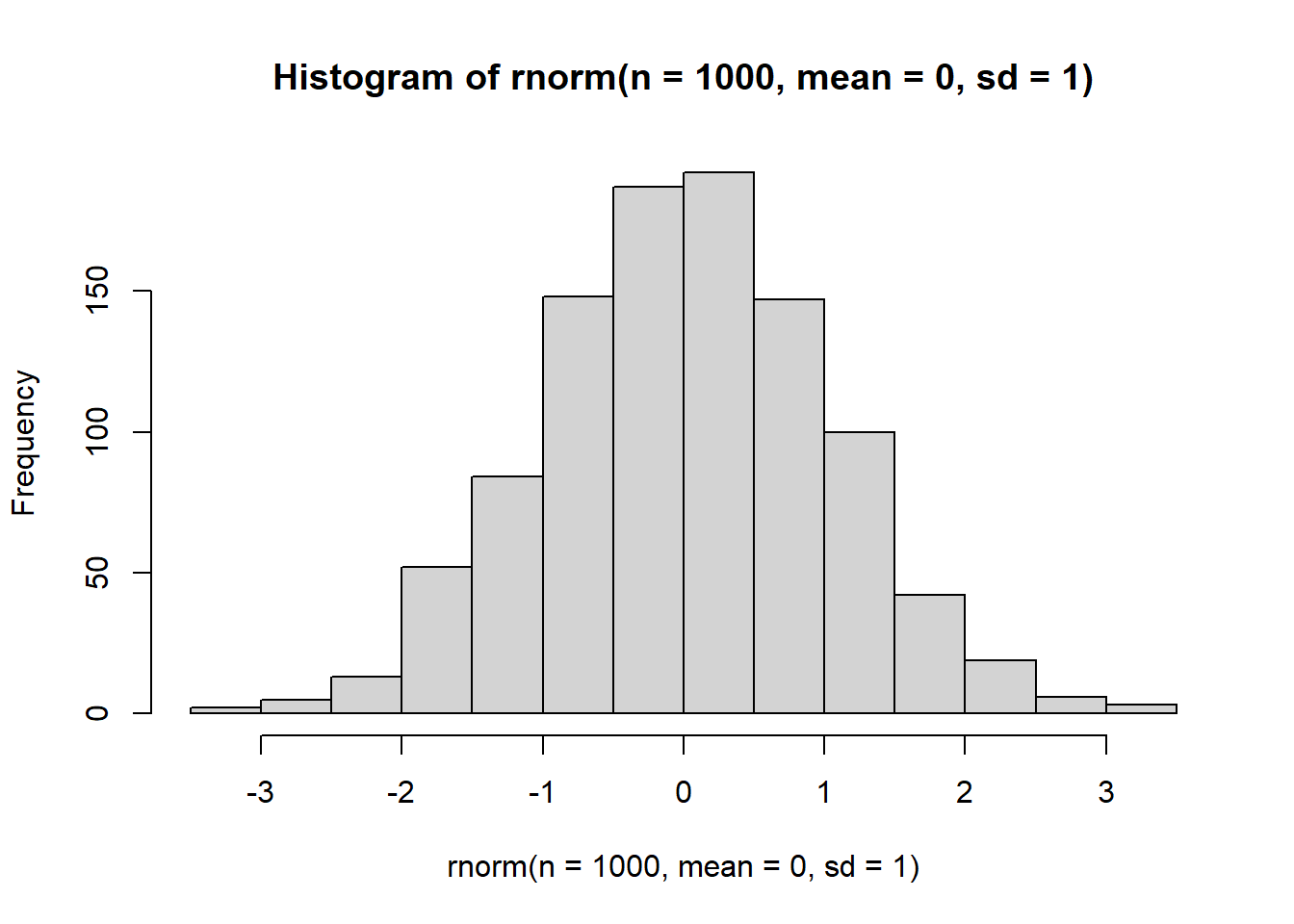
hist(rnorm(n=1000, mean=0, sd=1)) # Histogram of the simulated draws
Help for commands
?rnorm
rnorm(n, mean = 0, sd = 1)

n: number of observations. If length(n) > 1, the length is taken to be the number required.
mean: vector of means.
sd: vector of standard deviations.
- Notice that the “Usage” section already shows default values for
mean = 0andsd = 1. Therefore, if you provide onlyn, the function will still run using those default values. - You can call the function without writing the argument names, as long as the inputs are passed in the order shown in the documentation.
rnorm(10, 0, 1)
- You can also change the order by explicitly naming the arguments, although this is usually unnecessary.
rnorm(mean=0, n=10, sd=1)
R packages
- Packages are collections of functions, data, and code written by other users.
- Because R is open-source software, there are many packages available online, and many economists, especially econometricians, publish packages implementing new methods.
- A package only needs to be installed once.
- However, if you upgrade to a new version of R, you typically need to reinstall your packages.
- Packages can be obtained from package libraries such as CRAN or directly from individual developers, usually through GitHub.
- CRAN is curated, so packages hosted there go through maintenance and review procedures that help ensure quality.
- Be careful with packages distributed outside the main repositories. In principle, R code can create or delete files on your computer.
Installation via CRAN
lower-right pane > Packages > Install > (package names)
install.packages("ggplot2") # Package for creating graphs
Installation via GitHub
- First, install the
devtoolspackage:
install.packages("devtools")
- Then identify the GitHub username and the package name. As an example, we can install the
dplyrpackage from the userhadley(althoughdplyris also available directly on CRAN). - To call a function from a package without attaching the whole package, we can use
<package>::<function>
devtools::install_github("hadley/dplyr")
- Alternatively, you can attach the package and then call the function from the loaded environment:
library(devtools)
install_github("hadley/dplyr")
- Be careful: when you load several packages, two packages may contain functions with the same name.
- R gives priority to the package loaded most recently.
library(dplyr) # Package for data manipulation
## Warning: package 'dplyr' was built under R version 4.2.2
##
## Attaching package: 'dplyr'
## The following objects are masked from 'package:stats':
##
##     filter, lag
## The following objects are masked from 'package:base':
##
##     intersect, setdiff, setequal, union
library(MASS) # Usually attached indirectly through other packages
## Warning: package 'MASS' was built under R version 4.2.2
##
## Attaching package: 'MASS'
## The following object is masked from 'package:dplyr':
##
##     select
- One way to avoid this issue is to use
<package>::<function>
select(obj) # from the MASS package
dplyr::select(.data, ...) # from the dplyr package
Updating packages
lower-right pane > Packages > Update > Select All > Install Updates
Help and documentation
- If you know the function name, you can open its documentation by typing
?<function_name>as shown above. - If you know the package name, in some cases
?<package_name>also works, but the best practice is usually to check the package documentation on CRAN, either directly on the site or through Google. - For example, you can open the CRAN page for the
dplyrpackage: - There you can see the required R version, package dependencies, authors, and related websites.
- In the Documentation section, you can open the reference manual, which describes the package objectives and the available functions.
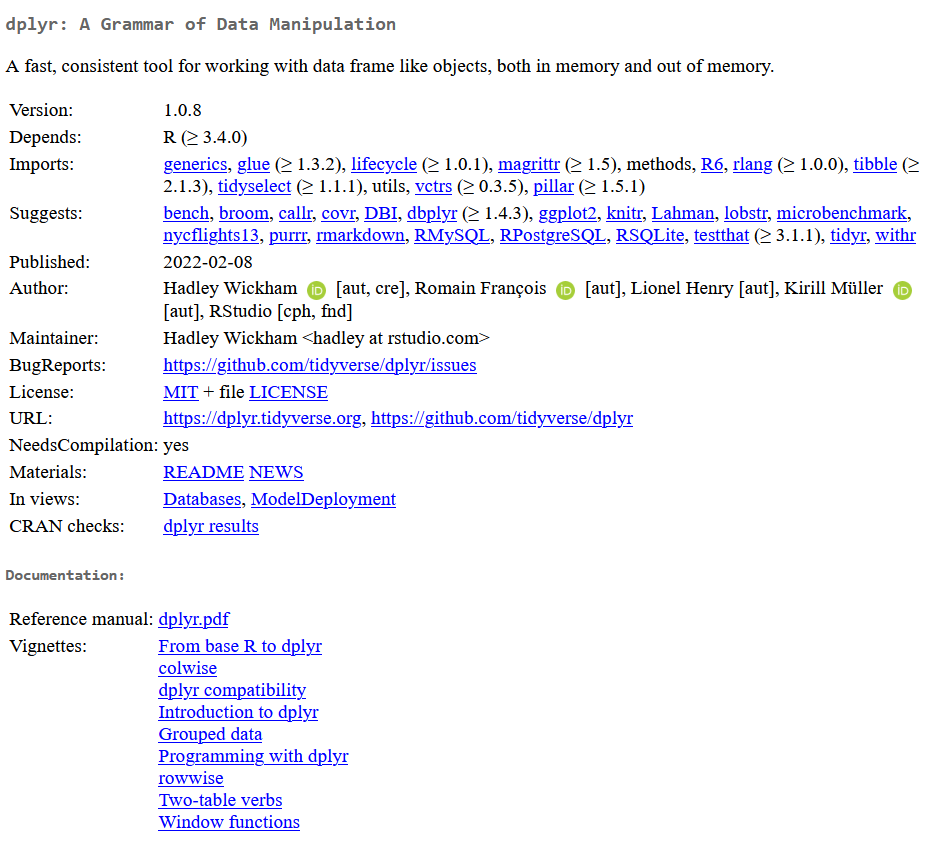
- It is also useful to look at package applications in the vignettes. They are usually written so you can replicate the examples on your own computer, which helps when learning the required data structure and the relevant syntax. You can also access them directly from R using
browseVignettes():
browseVignettes("dplyr") # Opens a vignette page in your browser
- If you do not know which function or package can solve a given problem, Google searches with relevant keywords, preferably in English, together with “R”, often work well.
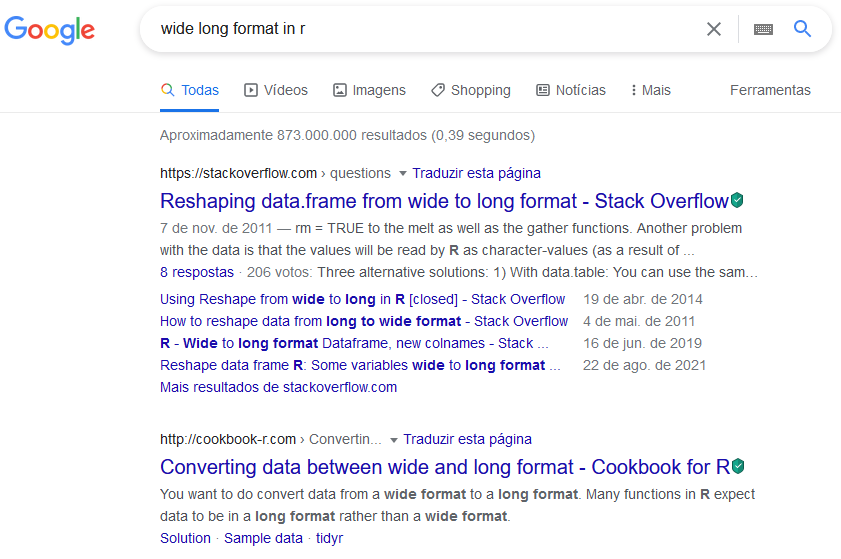
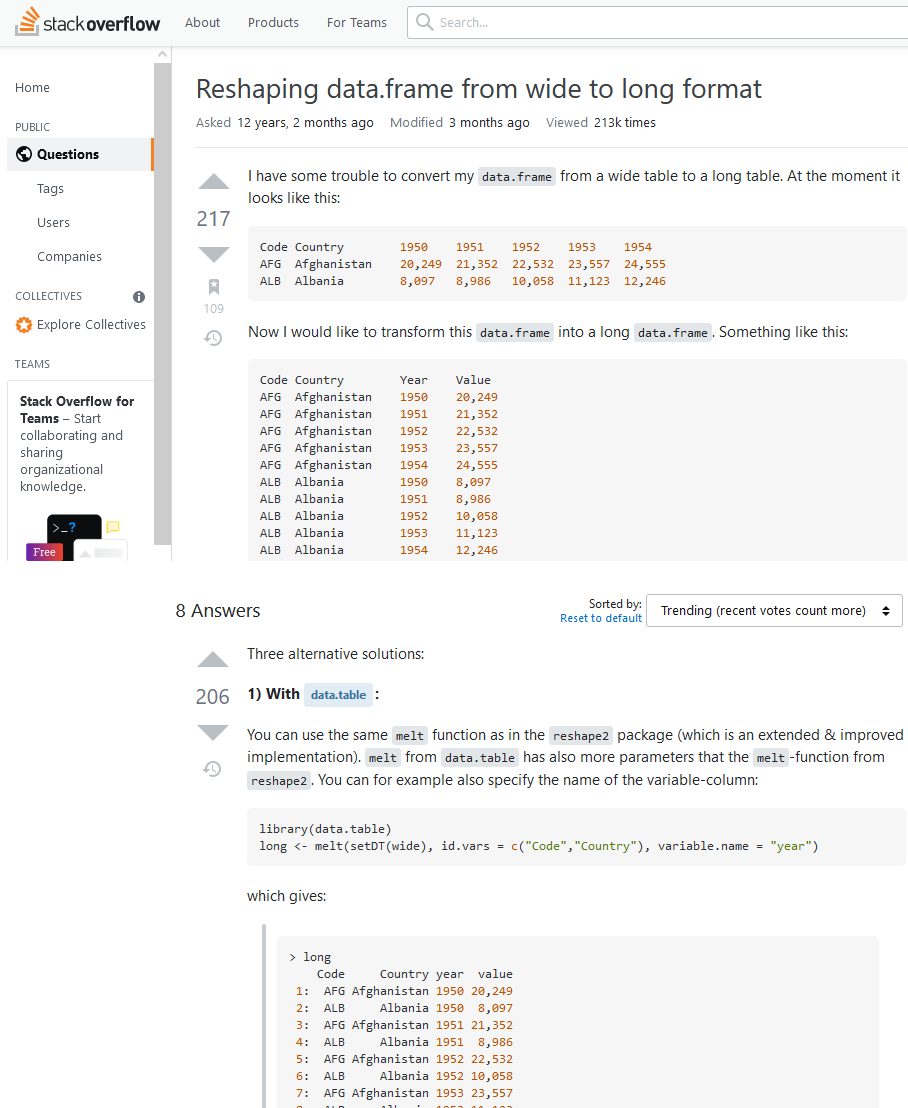
In addition to specialized R websites and tutorial videos, many answers appear on Stack Overflow or Cross Validated, which belong to the same network and are widely used by programmers and quantitative researchers.
Because R has a very large open-source user community, it is common to find that someone has already asked a question similar to yours. If not, you can post your own question there.
GitHub and version control
This section will not go into detail, but the topic is well worth exploring.